

How to Retrieve Google Backup Contacts on iPhone or Android

Don't worry if you lose contacts due to switching, accidentally deleting, or resetting your phone. In fact, as long as you've turned on Google Sync before, your contacts aren't really gone; they're securely stored in the cloud. The key is how to retrieve contacts from Google backup, whether you're using an Android or an iPhone. What follows will take you step by step to retrieve your contacts and make sure you don't duplicate, miss, or overwrite existing contacts.
PAGE CONTENT:
Part 1. How to Retrieve Contacts from Google Backup to Phone
If you just changed your phone, restored factory Settings, or accidentally deleted contacts, and now your phone's address book is blank, don't worry. As long as you've backed up your phone to Google, you can still restore your address book completely, without having to enter it again manually, and don't worry about missing important numbers, whether the device is an iPhone or an Android. Here's how to retrieve contacts from Google backup.
For Android
Step 1. Go to Gmail in your web browser and log in using the same Google account that's on your phone.
Step 2. Click Contacts in the left menu and select Restore Contacts from the More drop-down box.

Step 3. Select the recovery period and click the Restore button.

Step 4. Then go to Settings on your Android phone, click on Accounts, find and select your Google account.

Step 5. Tap the three-point button in the upper right corner and select Sync now. Wait a few seconds to refresh the contact list

After the above operation, the contacts will be re-displayed in the phone's address book. This is one of the most common and successful methods for most users who want to know how to retrieve backup contacts from a Google account.
For iPhone
If you switch to an iPhone, don't worry about being able to recover contacts from Google backup, because iOS also supports Google contact syncing.
Step 1. Open Settings, go to Mail > Accounts, select Add Account.
Step 2. Select Google and sign in with your Google account.
Step 3. Go to sync options and turn on the Contacts switch.
Step 4. Finally, wait for the contacts to refresh.

The essence of this process is to have the iPhone redownload the contacts from Google's server, so as long as you log in with the correct account, you can retrieve contacts from your Google account and have them go directly back into the phone's Contacts app.
Part 2. Retrieve Deleted Contacts from Google Contacts Website
If you are sure the contact used to exist but can no longer be found on the web, don't immediately assume the data is permanently gone. Google offers a very useful feature that many people don't know about: Undo Changes. This feature can recover contacts lost due to accidental deletion, overwriting, or sync errors, and it can go back up to 30 days. Therefore, if you are trying to retrieve backup contacts from Google, this is a very important step.
Step 1. Open your browser and go to contacts.google.com
Step 2. Log in using the Google account where your original contacts are stored.
Step 3. In the left-hand menu, click Undo changes.
Step 4. Select the time frame to restore, for example:
- 10 minutes ago
- 1 hour ago
- Yesterday
- 1 week ago
- Custom
Step 5. Step 5. Click Confirm.

Then, the system will automatically restore the contact data that existed during the previously specified period, including the parts you accidentally deleted or that were overwritten by automatic synchronization. Similarly, you can use this feature to recover deleted Google Calendar events.
If you plan to restore contacts to your phone, you need to perform a sync; otherwise, the restored contacts will only be kept on the Google Contacts web page and will not appear on your device. Once the sync is successful, you can retrieve contacts from your Google account and have them show up again in your phone's contacts.
Part 3. How to Restore Contacts without Google Account
If you have tried the methods mentioned earlier but still cannot retrieve contacts from your Google account, or if you have never enabled the sync feature, there is a last resort that can solve the problem, which is to use the professional tools. Among them, Apeaksoft Android Data Recovery is the best one. Even if you don't have a Google account, your contacts have been deleted, your phone won't turn on, or the system is damaged, there is still a chance to scan and recover contacts from internal storage.
Easily Recover Your Contacts on Android
- Supports deep scanning of the phone's internal database to recover accidentally deleted contacts.
- Allows previewing contact details, including name, number, email, etc.
- Able to recover all or selected contacts instead of overwriting everything at once.
- Compatible with all Android devices, including Samsung, Xiaomi, OPPO, and more.
Secure Download
Secure Download
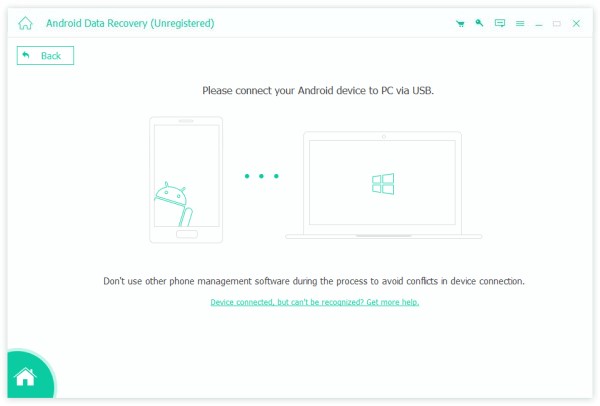
Step 1. After installing the software on your computer, connect your Android phone. Some devices may pop up a window to confirm what to do with the USB connection, just choose Transfer files.
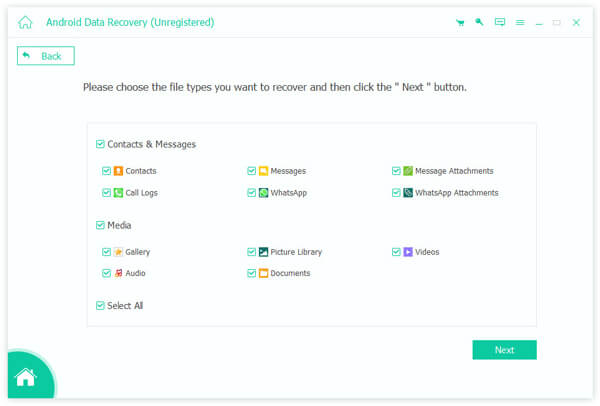
Step 2. Once successfully connected, the software will show all recoverable data types. Check the types of data you need, such as Contacts, and then click Next.
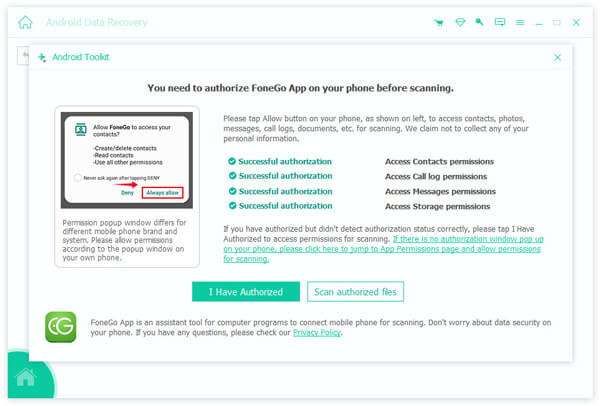
Step 3. Follow the prompts to allow the software to access contacts, storage, messages, and other permissions on your phone through the FoneGo App (a 100% safe app that will not leak any personal information).
Step 4. Since the software uses standard scanning by default, if the contacts you need to recover are not found, you can click Deep Scan at the bottom to perform a more thorough scan.
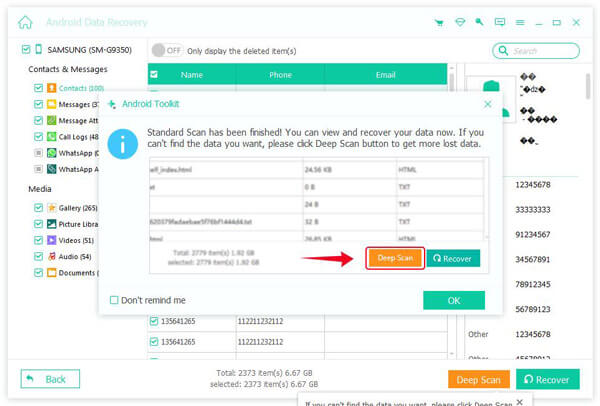
Step 5. After the scan is complete, select Contacts from the left sidebar on the interface, and preview the scanned contact entries on the right. Select the contacts and click Recover, and choose a save path on your computer.
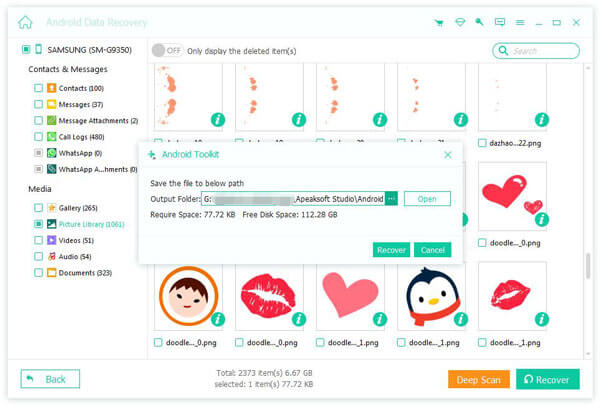
Once the recovery is complete, you can import these contact files back to your phone or into your contacts app to complete the entire recovery process.
Conclusion
Whether you are changing your phone, accidentally deleting contacts, or experiencing a sync failure, as long as you know how to retrieve Google backup contacts, most of the time, the data can still be recovered. And when there are no records in the cloud or the sync fails, Apeaksoft Android Data Recovery can still help you recover important contacts through deep scanning. What you need to do now is choose the recovery method that suits you best and fully restore your phonebook.
Related Articles